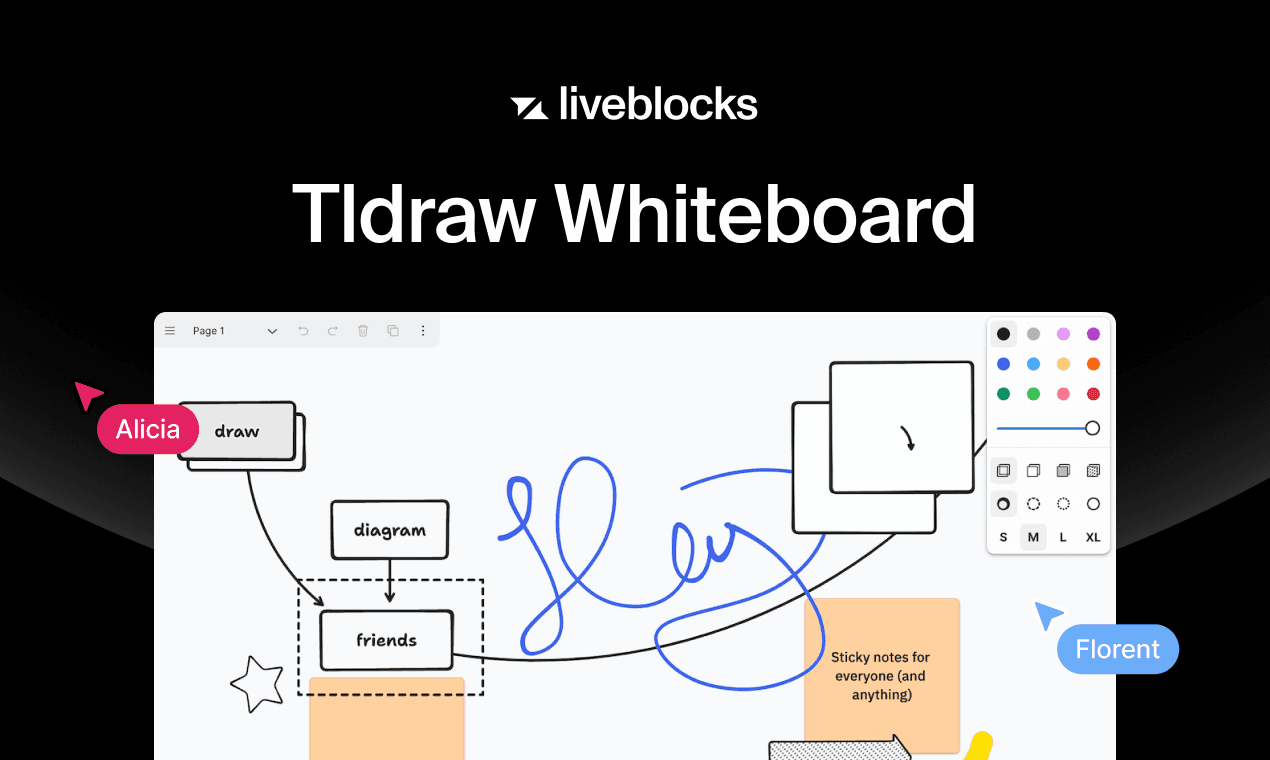
Tldraw Whiteboard (Storage)
This example shows how to build a collaborative tldraw canvas with Liveblocks Storage, and Next.js.
Getting started
Run the following command to try this example locally:
This will download the example and ask permission to open your browser, enabling you to automatically get your API key from your liveblocks.io account.
Manual setup
Read more
Alternatively, you can set up your project manually:
- Install all dependencies with
npm install - Create an account on liveblocks.io
- Copy your secret key from the dashboard
- Create an
.env.localfile and add your secret key as theLIVEBLOCKS_SECRET_KEYenvironment variable - Run
npm run devand go to http://localhost:3000
Dev server setup
Read more
You can optionally run this example locally using the Liveblocks dev server.
- Install the example as detailed above
- Run
npx liveblocks devto start the server - Add
baseUrl: "http://localhost:1153"option toLiveblocksProviderandnew Liveblocks - Replace
secretinnew Liveblockswith"sk_localdev" - Run
npm run devand go to http://localhost:3000
Deploy on Vercel
Read more
To both deploy on Vercel, and run the example locally, use the following command:
This will download the example and ask permission to open your browser, enabling you to deploy to Vercel.
Develop on CodeSandbox
Read more
After forking
this example
on CodeSandbox, create the LIVEBLOCKS_SECRET_KEY environment variable as a
secret.
License
The tldraw library is provided under the
tldraw license which
allows commercial and non-commercial use. To purchase a business license and
remove the watermark, contact sales@tldraw.com.